pfSense Configuration Gotchas
·2 min read·BIGWONG Studio
Network
These are easy-to-miss pfSense settings that often lead to weird network problems.
MTU Settings
On WAN, set MTU manually. In PPPoE, MTU should be max ping size + 28 (Ethernet header). Set MSS to the same value.
- Go to Interfaces > WAN
- In General Configuration, set MTU and MSS
- Click Save
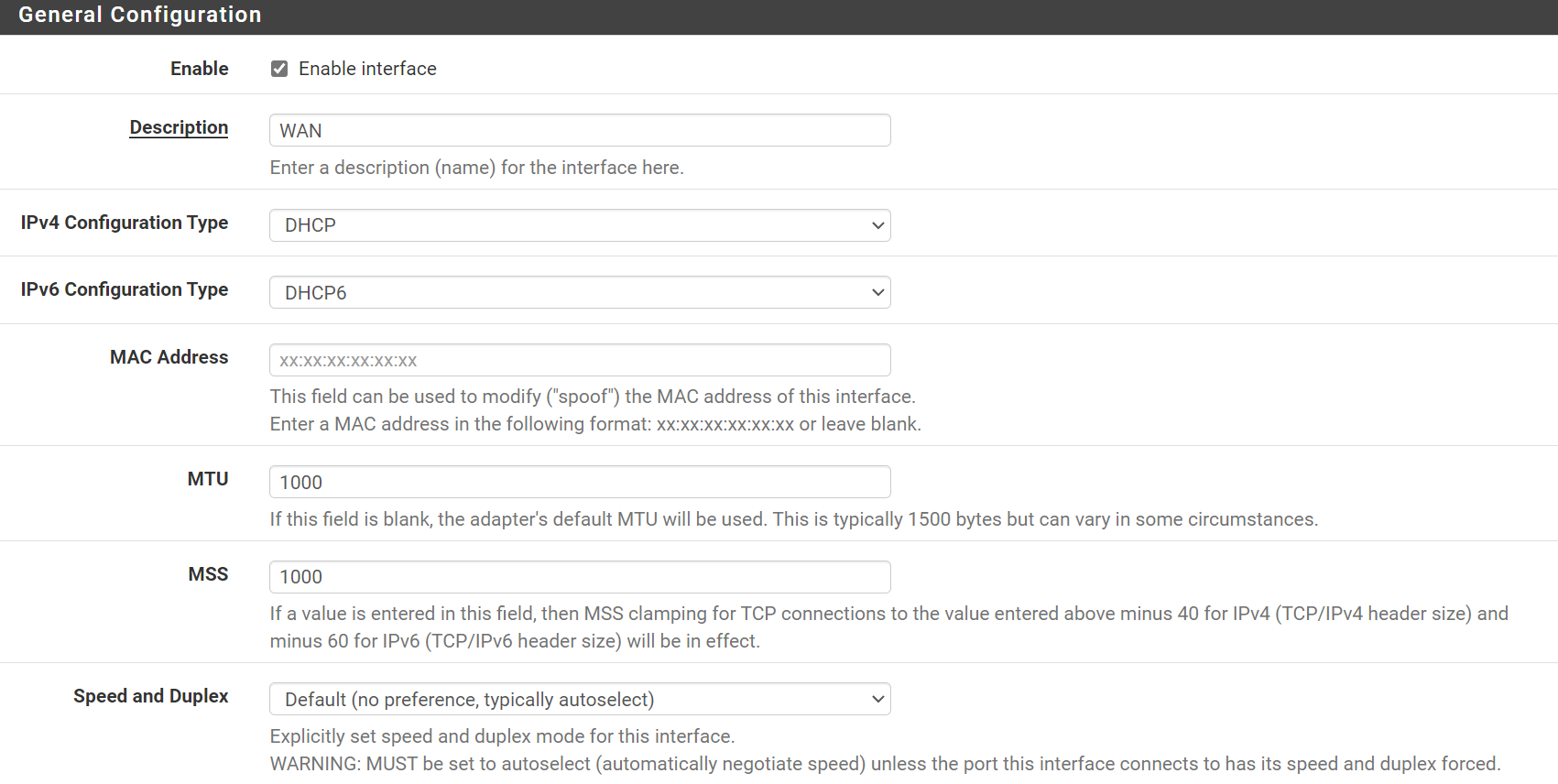
You can test MTU in Windows with ping baidu.com -l 1464. If it works, increase the size; if not, reduce until you find the largest working size.
Disable Hardware Checksum Offload
If pfSense runs in a VM and the NIC type is VirtIO (PVE or Synology VMs), you should disable hardware checksum offload. Otherwise pfSense may incorrectly block normal traffic.
- Go to System > Advanced > Networking
- Under Networking Interfaces, enable Disable hardware checksum offload
- Click Save
- Reboot pfSense

You can also try toggling Disable hardware TCP segmentation offload and Disable hardware large receive offload. Hardware offload reduces CPU, so only disable them if you run into issues.
PPPoE IPv6 Settings
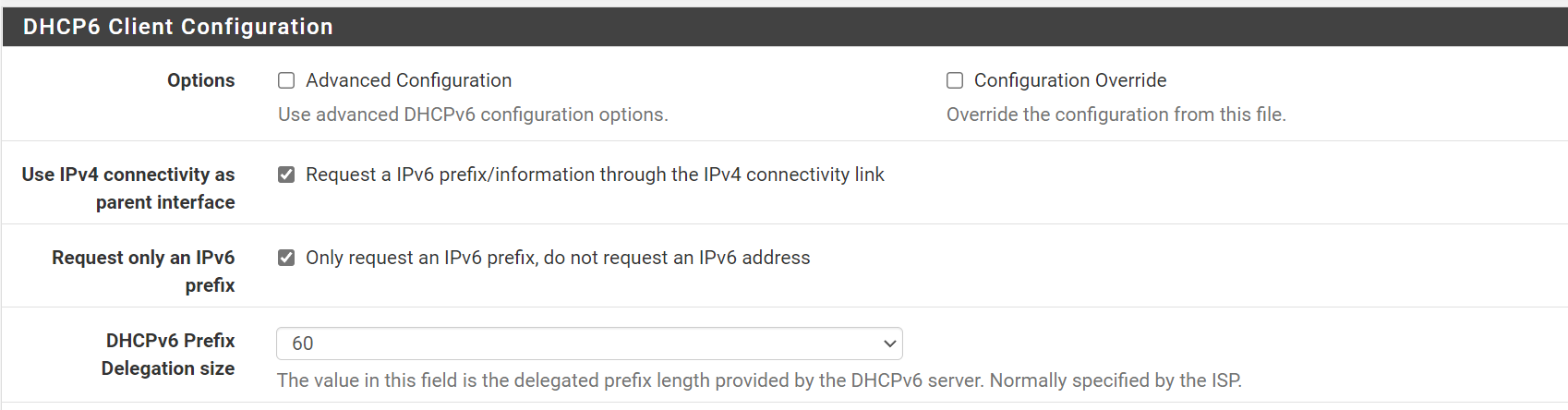
WAN
- Go to Interfaces > WAN
- Under DHCP6 Client Configuration, enable Use IPv4 connectivity as parent interface and Request only an IPv6 prefix
- Set DHCPv6 Prefix Delegation size to 60 (or leave empty)
- Under Reserved Networks, uncheck Block private networks and loopback addresses
- Click Save
LAN
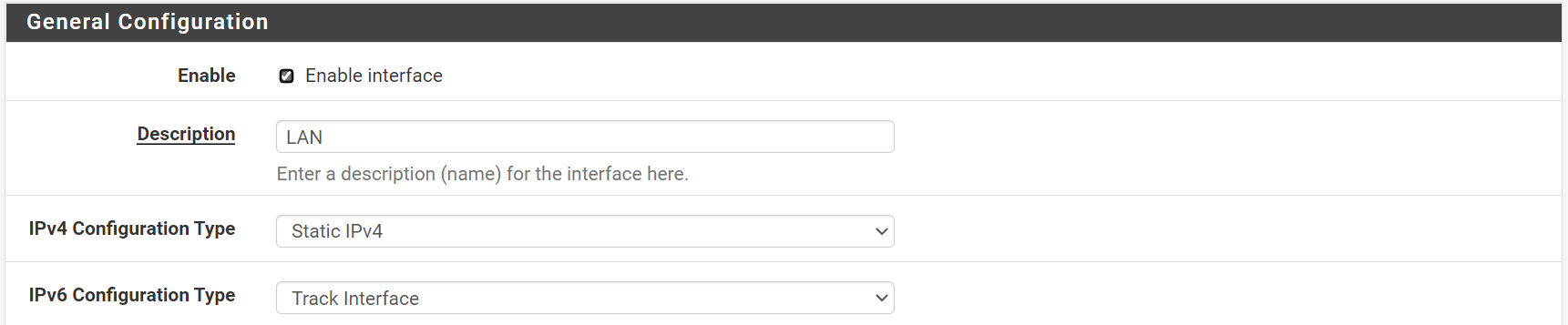
- Go to Interfaces > LAN
- In General Configuration, set IPv6 Configuration Type to Track Interface
- Under Track IPv6 Interface, choose WAN
- Click Save

Notes:
- Without Use IPv4 connectivity as parent interface, you may not get IPv6.
- Without Request only an IPv6 prefix, your LAN IPv6 can conflict with the router's public IPv6.